Teaching Picks
Before picking, RoboPick needs to learn about the object. We call this model training. First, prepare the CAD model (format: STL or PLY) in a USB drive. Then, connect the USB drive to RoboPick PC and copy the CAD model to the PC, e.g., the home directory.
Model training from CAD
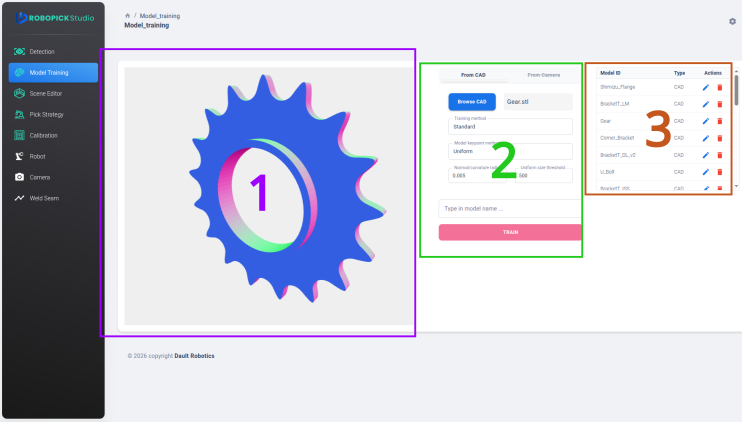
Open the RoboPick Studio from a browser and go to http://localhost:3000/model_training, or simply click the "Model Training" section on the left navigation bar. The model training page will appear as shown in below's screenshot.
Figure 1 shows the different parts of the model training page. The first part on the left is the visualization of the object's CAD data. The center part is the training UI. And on the right is a list of stored trained models.
The CAD model unit must be in meter. If the unit is in millimeter, you can first scale it down by 0.001 in a mesh editing software such as Meshlab.
1. Upload the CAD model
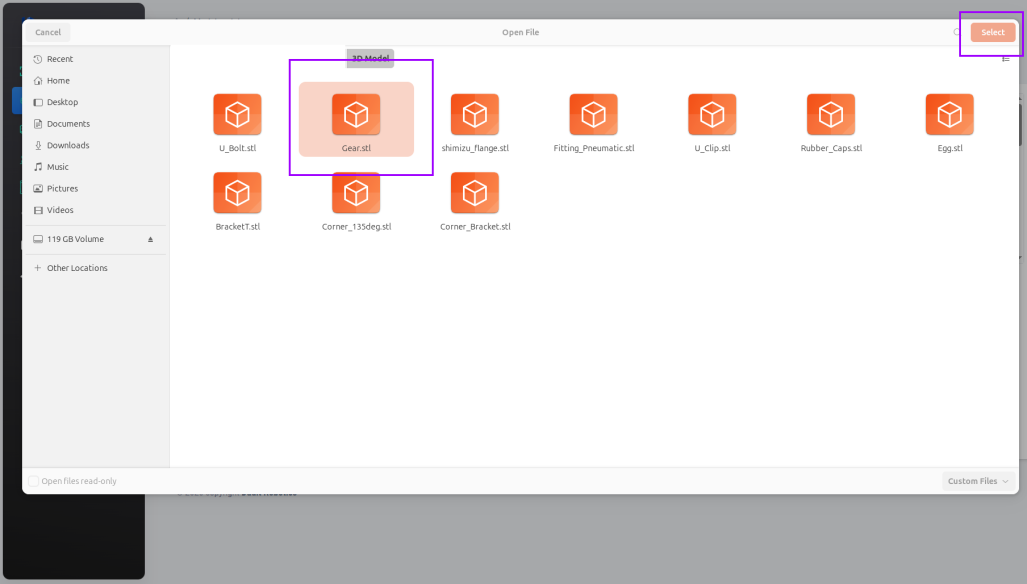
First, upload your object's CAD model to RoboPick by clicking the Browse CAD button. Locate the CAD model, e.g., from your USB drive and click Select button on the top right. The left view will then show the uploaded CAD model.
2. Choose training method
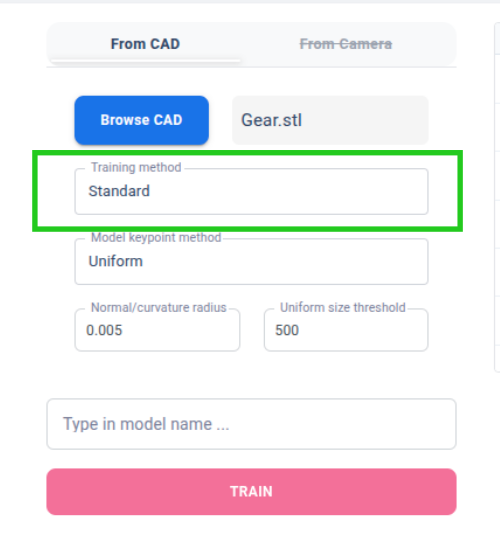
From the drop down menu Training method, select which method to use in the training. There are three different methods to train RoboPick to recognize objects. For all three methods, it's recommended to start with their default parameters.
Standard
The most straightforward way to train RoboPick. This method extracts distintive 3D features from the CAD model and use them to find objects in the scene. This method offers the fastest detection time during operation.
Template-based
This method will generate hundreds of color + depth templates from the CAD model and match them against the scene to locate objects. Use this when the objects are flat, for example, objects made from cutted metal sheet. Leave the parameters with their values, as these are usually sufficient in most detection cases. This method yields slower computation time than the Standard method, but faster than the Deep learning method.
Deep learning
This method will train neural network models to locate objects with higher performance. There is no need for manual dataset collection and annotation since this method leverages synthetic training data using solely the CAD model. When started, the training process will take up to an hour. This method takes the longest computation time compared to Standard and Template-based methods.
3. Providing the model id and starting the training process
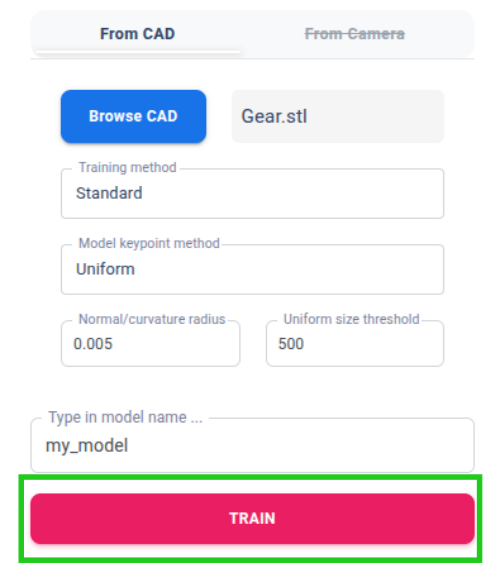
Before starting the training process, first type in the model name / id. Give it a unique name. If there's already a model with the same name, it will be overwritten. Finally, click the TRAIN button, and wait until the process is finished.
Model training from camera capture
Stay tuned. This feature is currently under development.
3. Managing stored models
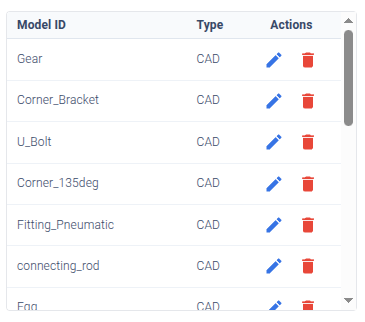
On the right side of the UI, you can find a table listing all stored models. You can delete and edit existing models.
Once the training is finished, you can proceed to defining the detection scene.